Labeling Multi-ROIs
You can use the tools available on the ROI Painter and ROI Tools panels to quickly and easily label voxels that correspond to the multiple classes of a multi-ROI, or to edit a multi-ROI. For example, to train a deep model for semantic segmentation.
 Setting a Class as the Background
If this option is enabled, labeled voxels that are removed from any class, as well as unlabeled voxels that are painted, will be added automatically to the set background class.
How to Set a Class as the Background
- Name the class you intend to set as the background, recommended.
- Drag the class you intend to set as the background to the Background class box and drop it when the "+" appears with your cursor, as shown below.
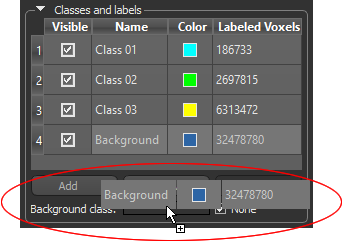
The name and associated color of the class appear in the Background class box. To disable the background, check the None option.
Note If required, you can change the set background class by dragging another class to the Background class box.
Labeling Multi-ROIs with the ROI Painter Tools
You can use the tools available on the ROI Painter panel to manually label the voxels of each class in a multi-ROI (see ROI Painter).
How to Label a Multi-ROI
- Create a new multi-ROI, if required (see Creating New Multi-ROIs).
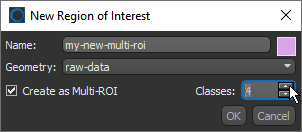
Note You can specify the number of classes required in the New Region of Interest dialog, shown below.
- Select the multi-ROI in the Data Properties and Settings panel.
- Assign a name and color to each row in the Classes and scalar information box, recommended.
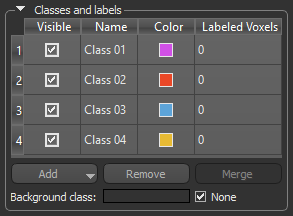
Note You can additional classes to the multi-ROI at anytime. Click the Add button and then do one of the following:
- Choose Add Class in the drop-down menu to add a single class to the multi-ROI.
- Choose Add Multiple Classes in the drop-down menu then select the required number of classes in the Add Classes dialog, as shown below.
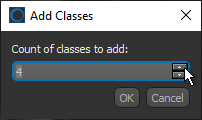
The requested number of classes are added to the multi-ROI.
- Designate one of the classes as the background, optional (see Setting a Class as the Background).
- Maximize the view of your dataset on which you plan to work, recommended (see 2D View Pop-Up Menu).
You can also change the zoom factor and position, as well as adjust window leveling to facilitate labeling (see Using the Manipulate Tools and Window Leveling).
Note All classes must be labeled on the image plane if your segmentation will be used to train a deep model or machine learning classifier (see Training Deep Models for Semantic Segmentation and Training Classifiers for Segmentation).
- Select a class in the Classes and scalar information box and then label the voxels corresponding to that class.
For example, you may need to label voxels that correspond to a specific material type or phase or to an anatomical structure.
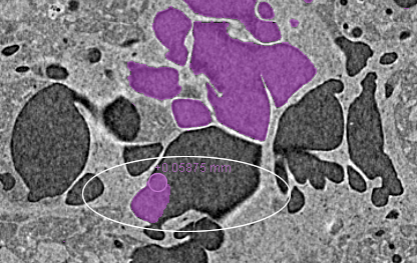
Note You can use the tools available on the ROI Painter and ROI Tools panels to label the multi-ROI (see ROI Painter and ROI Tools). You can also define an intensity domain to facilitate segmentation tasks (see Defining Intensity Ranges).
- Label voxels that correspond to the other classes included in the multi-ROI, as required.
Note The number of labeled voxels that correspond to each class is indicated in the Labeled Voxels column and is updated dynamically while you work.
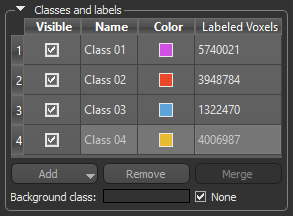
- Save the multi-ROI, if required (see Exporting Objects).
Editing Classes and Labels
You can edit the labels of each class within a multi-ROI with the ROI Painter tools, as well as add or remove clipped regions (Adding and Removing Clipped Regions). Additional options are available in the Classes pop-up menu to label all non-intersected voxels, clear classes, import the labels of a region of interest, and other operations (see Classes and Scalar Information Pop-Up Menu).
Editing Labels with the ROI Painter Tools
You can add or remove labeled voxels from any selected class with the Brush tools. For example, in cases in which a feature of interest was misidentified as belonging to another class by the Segmentation Wizard during model training. You should note the following whenever you edit the classes of a multi-ROI:
-
Labeled voxels cannot intersect. For example, if you are labeling voxels as 'Class 1' and paint over labeled voxels of another class, then those voxels will be automatically labeled as 'Class 1'.
-
When a single class of multi-ROI is selected and you are working in 'Remove' mode, only voxels within the selected class will be removed. All other labels will remain as is.
-
If no class is selected, all voxels will be removed when you are working in 'Remove' mode.
-
You can edit labels in 'Exclusive' mode, which limits painting to only the labeled voxels belonging to the selected classes (see Editing Labels in Exclusive Mode).
How to Edit Labels with the ROI Painter Tools
- Designate one of the classes as the background, optional (see Setting a Class as the Background).
- Selected the required class in the Classes list.
- Define a range, optional.
In this context, any voxel with a value outside the range will not be selectable (see Defining Intensity Ranges).
- Select the tool with which you plan to edit the selected class and the tool settings (see ROI Painter).
- Add or remove labeled voxels from the selected class, as required.
Editing Labels in Exclusive Mode
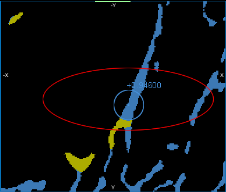
You can choose to work in Exclusive mode with the Brush tools. In this mode, only the labeled voxels belonging to the selected classes will be affected when painting. Unlabeled voxels will not be painted. This option is available when you select multiple classes in the Classes and labels box.
How to Edit Labels in Exclusive Mode
- Select the required classes in the Classes list.
The selected classes are identified as (A), (B), and so on.
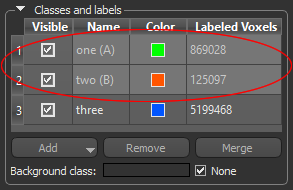
- Select the tool with which you plan to edit the selected class and the tool settings (see ROI Painter).
- Do the following, as required:
- Add labeled voxels to class (A) from all other selected classes by holding down Left Ctrl (or your configured Add with key) and then painting.
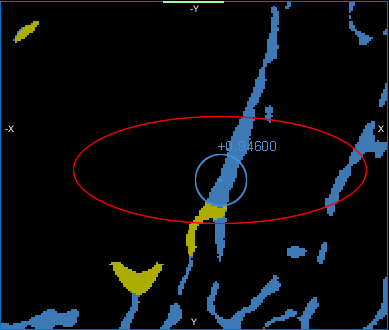
As shown below, only the labeled voxels highlighted in yellow are re-assigned to those highlighted in blue when painting in Exclusive mode.
- Re-assign labeled voxels to class (B) from all other selected classes by holding down Left Shift (or your configured Remove with key) and then painting.
- Add labeled voxels to class (A) from all other selected classes by holding down Left Ctrl (or your configured Add with key) and then painting.